Showing posts with label Google. Show all posts

Thursday, April 17, 2014

Google+ for Android Redesign Leaks

We've seen a few Google app redesigns leak lately, including Calendar and Gmail. I can't say I love the new looks — in fact, I kinda hate them — but they seem to appeal to quite a few others.


Suspected to be announced at Google I/O, Google+ is expected to get a redesign and it seems that images of the new Android app has showed up on Google+ of all places courtesy of +Yoel Kasub.

He claims that these are images from a test build of Google+ and it seems to be mainly a design change of the user interface as opposed to any drastic functionality changes.


Most notable is the flat UI which seems to follow the same path as what Apple and Samsung are going for and it looks pretty good.

As with any leak, reservation should be exercised as this could be just an internal testing version which was never meant to reach the public domain; on the other hand it could be the new Google+ we’ll see at Google I/O. You decide.

Source: Google+

Get the Google Play store on your Kindle Fire

The Amazon app store still doesn't have as many apps as the Google Play store so you may want to have it on your Kindle. We show you how to do that here.

The Kindle Fire is a great tablet for those who use Amazon's services and it comes at a great price point which bodes well for those looking for budget friendly devices. Kindle also runs Android although the version of Android it runs is heavily modified it is very difficult to see it runs Android and with no Google Play store device around it becomes hard to use it like any other Android device. Thankfully though, you can install the Play Store on your actual Kindle with a little bit of work. This is how you do it.

Google Play store

In order for this to work, you will need to have your Kindle Fire rooted.

1. First off, download the ES File Explorer App from the Amazon App Store which will allow you to transfer and launch the necessary files.

2. Download the necessary Google Play files from here and extract the files from the compressed file.

3. Open ES File Explorer and enable 'Root Explorer' by going into 'Settings' and selecting 'Root Settings' and checking the 'Super User', 'Root Explorer', and 'Mount File System' options.

4. Return to the folder where you extracted the downloaded files and install 'GoogleServicesFramework.apk' and reboot your Kindle.

5. Once the reboot is complete, cut the 'vending.apk' file and paste it in the /system/app directory.

6. Long press on the 'vending.apk' once it's moved and select 'Properties'. You'll need to change the permissions to make sure that 'read' and 'write' are checked for 'User' and 'read' is checked for 'Group and Other'.

7. Install 'vending.apk'.

8. Return to your homescreen and look in your Home-> Apps section and open the 'Market' icon to launch it and sign into your Google account.

9. Finally, you'll want to return to the folder with the extracted files and install the file 'gplay.apk', reboot your Kindle, and enjoy Google Play on your Kindle Fire.

Have you tried this process out on your Kindle device? Please leave us a comment below to tell us how it went for you.

Source: Android Guys

Chrome Remote Desktop finally arrives for Android

Google has released the final version of the Chrome Remote Desktop client for Android, allowing you to control your PC or Mac from the comfort of your Android device.

Google is on a bit of a roll with the high impact app releases lately, following on from the awesome new Google Camera app, the giant of Mountain View has also released Chrome Remote Desktop for Android. This app lets you take control of your desktop on your mobile device. Don't let the name fool you though, you're not just getting access to Chrome, but to your entire PC or Mac.


First up, you need to add an extension to Chrome on your desktop. You can do that via the Chrome Web Store. Once you've got that installed you can grab the Chrome Remote Desktop app for Android from the Play Store and get started. You'll now have access to any of your PCs or laptops from you Android device, as long as they have the remote desktop extension added.


None of this is new news, a version of this client was available way back in January and some other major companies like Amazon have already released their own desktop clients, plus there's dozens of remote access apps in the Play Store. But this is big news simply because it's Google supporting it, and that means dire things for all those small third-party clients out there. The big boys just joined the party.

Check out list of the best remote access apps for Android.

Have you used a remote desktop client before? Do you think the likes of Google and Amazon will squeeze out the little guys?

Via: Tech Crunch
Source: Google Play Store

Monday, April 14, 2014

What do you think of the proposed new Google icons for Android?

Google's app icons for Android look set to get a makeover soon to more closely match their web-based counterparts. What do you think of the change and do we even need it?

With a likely change in the Google icons for Android in the pipelines to better match what we currently have on the web-based version of our favorite Google products, the question arises: do we really need them if they represent yet another change in Android's design guidelines?

The new leaked Google app icons - do you prefer them or want them to stay the same?

The new icons have been picked up by Android Police and they do seem a little more stream-lined compared to their current Android form. But considering the Holo design style is still seeping into the billion apps in the Play Store with relatively slow uptake, is changing the guidelines for app icons – requiring even more changes from developers, no matter how simple – really a good idea? Sure, Google gets to set the standard, but suddenly everything else on your Android looks out of whack and everyone has to play catch up. Here's the current web and Android versions along with the new icons leaked to Android Police.

The new icons show a better resemblance to their web-based counterparts, but they're still not perfectly aligned with Google's design guidelines.

The guidelines set by Google for both web and Android are not even mirrored in their own icons. Giving the icons a refresh to actually match what Google itself lays down for others makes sense, but even with the proposed new icons in the image above we still don't have consistency across the board between the web and future Android icons (or the guidelines themselves in their current state). Is this just change for change's sake? Or is this part of a broader cleaning up of Google's properties and well overdue?

Source: Android Police

Monday, April 7, 2014

Google to launch Android TV: Report

Close on the heels of the Amazon Fire TV launch, a new report emerged claiming that Google is working on its own version of Android TV, which in all likelihood will compete with Apple TV, Amazon's Fire TV and Roku.

Reportedly, major video app providers have started building for the platform. Technology website The Verge claims that it has exclusively received some documents which read, "Android TV is an entertainment interface, not a computing platform".

It's all about finding and enjoying content with the least amount of friction." It will be "cinematic, fun, fluid, and fast."

Google reportedly is working on its own version of Android TV, which in all likelihood will compete with Apple TV, Amazon's Fire TV and Roku.

The company is asking developers to build simple TV apps for what is claimed to be an extremely simple set-top-box interface. The interface will have a set of scrolling "cards" that represent movies, shows, apps, and games.

Using a remote control, you will be able to scroll left and right through different suggestions, or up and down through different categories of content.

The controller will also have Enter, Home, and Back buttons. Also, there will be "optional" game controllers. Quite like the Amazon Fire TV, Google' upcoming Android TV is rumoured to support voice inputs.

This article originally published at IBNLive

Wednesday, March 26, 2014

Android 5.0 naming convention and launch date: cast your vote

With Android Wear announced it new platform will be demoed at Google I/O on june 25th, but could we see a new Android version at the same time? What will it be called?

Once KitKat arrived we all kind of forgot about Android 5.0 because it suddenly leaped so far into the future it practically disappeared over the horizon. But with Google I/O coming up on June 25th, a few are starting to forecast a major new Android version appearing alongside Android Wear. So we want to know is: what do you think it will be called?


The most popular name so far seems to be either Lollipop or Lime Pie, which may just be a kindness considering everyone thought Android 4.4 would be called Key Lime Pie. But Licorice has a few people on board, as does Lemon Meringue, but considering the corporate tie-in opportunity that KitKat offered, it seems possible that we may see another brand-name in the next iteration of the world's most popular mobile platform. As an Australian, I'm holding out hope for Lamington, but I somehow doubt it. Likewise, many of our Indian readers are keen on Lassi or Ladoo but they are probably just as unlikely. Either way, an "exotoc" name is hardly going to affect adoption of the new version.


So we ask you: what do you think the next Android version will be called? We've got our top picks above, but if your naming suggestion doesn't appear be sure to let us know in the comments (and give your favorites a thumbs-up)! We don't have any prizes for a correct guess, but at least you'll be able to refer back to this article to prove to your friends just how ''on the pulse'' you truly are.

Check out this general design concept for Android 4.5 (or whatever it will be called!)

and this new user experience for Android 4.5

Do you like Google's brand-naming strategy? When do you think Android 5.0 will arrive?

This article originally published at AndroidPIT

Monday, March 3, 2014

How to use multiple devices on your Google account?

Want your Google content mirrored on both your Android devices? Or one primary device and another entertainment device without duplicate notifications? We'll show you how

If you're lucky enough to own more than one Android device you've probably already confronted this dilemma: how to manage multiple devices on a Google account. Basically you have a couple of options, you can either use the same account on both devices, meaning that your Google content will be mirrored on both devices, or you can create an alternative account for the secondary device and manage your connections manually. Here's how to do both.


One Google account on multiple devices

If you sign into a new device with the same Google account that you are already using elsewhere, a few things will happen: you will get emails on both devices as well as any Hangouts messages, YouTube subscriptions and other Google account preferences on both devices. The good thing about this method is that any Google Play Store purchases you may have made will also be available on both devices, so you won't have to pay for another license to install that app on a secondary device (unless, of course, you want a specific tablet version of the app). You'll also be able to keep up to date with what's happening and work from either device. The bad thing is that you may feel that all of this doubling up on notifications is annoying or is simply needlessly repeated because you only ever use your tablet for gaming, for example.
An Android device can handle several different Google accounts, as can Google apps.

Multiple Google accounts on multiple devices

This way is still very easy, but requires a little more setup to get it working just how you want it to. Basically, you're already signed into your primary device with your main Google account, then, on the second device you create a new Google account as the main account and add your primary Google account as well. This now gives you the opportunity to select which account you would like to associate with various apps. Perhaps you want photos taken on both devices to be uploaded to the same Google Photos account, but you don't want your YouTube video history or Chrome search history appearing on a device your children often play with. Or you just don't want any notifications going off and interrupting your quality Dead Trigger 2 quiet time.

It's easy to switch between Google accounts in Google apps.

Sync, backup and other account options

Both versions let you choose your sync settings on both devices, so you can still be logged in as the same Google account holder on both devices and just disable notifications (on your gaming tablet, for example). Also, simply not logging into things like Hangouts or Gmail on the secondary device is also an option. It all depends what you want your second device to be used for and how connected you want to be on both devices. If you're prone to gaming on both devices, you can simply use the same Google Play login information on both or use Facebook to sign into the games you want synced across devices. Of course, you'll also need to be careful with your sync and backup and restore options on both accounts, again depending on just how you want them both set up. It's Android, so you can get it just right with a little effort!

How many Android devices do you have? How do you manage your accounts across devices?

Tuesday, February 25, 2014

Share: What to do with an old smartphone?

So, you got yourself a brand new smartphone. Do you send your old one to the grave or the back or a drawer? Here's some ideas of what to do with it.

Well, it happens to everyone: time to upgrade to a new smartphone. But, if you’re like the majority of people out there, you’ve probably taken pretty good care of your current smartphone. So, what do you when it is time to upgrade? Sure, you could toss out the phone or stuff it in a drawer and let it collect dust, but why not put it to use as something else? 

     Don't throw out your smartphone quite yet!

Remote Control

There are many applications that allow you to turn your smartphone into a universal remote control. With the app Retune, for example, you can control your iTunes player, Unified Remote lets you access your PC without having to get up from your couch, and Power DVD Remote lets you control your DVD player from your smartphone.

Alarm Clock

Sure, you might already do this with your in-use phone, but if you’ve got an old smartphone around, why not set it up to a dock system and let it be a powerful alarm clock? You can definitely use the default alarm setting on your smartphone, however, give the following applications a try for a little bit more variet and “smartness” to them: Timely, Wake Up, and doubleTwist Alamar Clock.

Game Console

If your old smartphone was made in the last few years, it probably has a pretty good processor in it. Why not dedicate it as a mobile gaming console? Use it to play your favorite games, connect an external gamepad/joystick, even link it up to your television.

External storage

Want access to data at all times but don’t really trust cloud services? Turn your old smartphone into a portable hard drive and save all types of files thanks to such applications as Servers Ultimate, FTP Server, or WebDAC server.

So, those are just a few suggestions. What else do you use your smartphone for?

(originally by Nico Heister)
 

How to use Google Voice to make calls and send messages?

Google Voice allows you to make calls over the internet. In this tutorial, we will explain how to make calls from your tablet or smartphone via Google Voice.


Calls over the internet are a great alternative when you are connected to a good Wi-Fi network, using it with mobile data could get a little pricey.

What is Google Voice?

In the United States, Google Voice is a trending topic in the world of smartphones and tablets. It was originally released in 2005 under the name of GrandCentral, which could be used to make a number of phone calls and have been redirected to any telephone. In 2007, Google purchased GrandCentral and Google Voice was launched in 2008. The main advantage is that one single number can be associated to multiple devices, regardless of the SIM. Unfortunately this service is only available in the U.S.

How to use Google Voice on your smartphone?

While Google Voice is only available in the U.S, you can use Gmail globally to chat with other Gmail users. To install Google Voice on your smartphone, follow these steps:

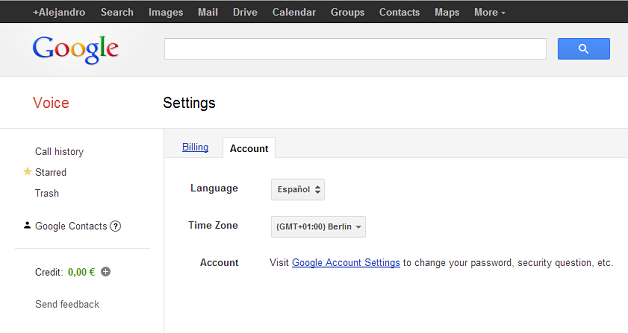
1. First you need to activate Google Voice. To do this, you just need to have a Gmail account and once you have it, Google Voice option will automatically be an option already present on the site.


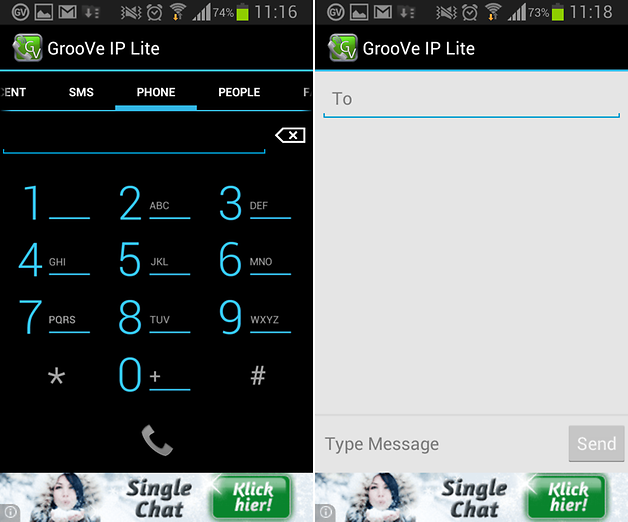
2. Download the Lite Groove IP app from the Google Play Store.
 

GrooVe IP Lite Free Calls Text


3. Once downloaded, ensure that you log in with your Gmail account on the app. The app itself prompts you with the option to link it to our Gmail account. You can do this manually as well.

4. To make a call you need to add a balance to your account. This you can do from Gmail or Google Voice. The picture below shows you the rates.


5. Now you can start to use the service to make calls or send messages. Enjoy!


To be able to call via 3G you will need to install the paid version with costs about 3.99 USD. What is your opinion of this service? Are you going to try it on your smartphone?

Editor's Recommendation:
How to sync music with Google Play Music?
James Cameron: Avatar sequels to be shot 4K, partially high frame rate