Showing posts with label Tablet. Show all posts

Wednesday, December 3, 2014

How to Transfer files from Smartphone or Tablet to Your PC?

It couldn't be simpler to get music, photo and movie files from your smartphone or tablet to your PC. There are several ways to do it, the most common of which we have described below:

Via Bluetooth:
  1. Enable your device's Bluetooth. For iPhone/iPad, go to Settings > General > Bluetooth. For Android devices, hit the menu button and go to Settings > Connections > Bluetooth.
  2. Enable your PC's Bluetooth. For Windows 7, click Start > Control Panel > Hardware and Sound > Bluetooth Devices. For Windows 8, press the Windows key + C > Settings > Change PC Settings > Wireless.
  3. On your phone, find the files you'd like to transfer.
  4. Go to the menu and select Send. If it prompts you, choose the via Bluetooth option.
  5. Select your computer in the list of devices that pops up.
  6. You may be asked for a passcode. Follow the instructions your computer gives you to accept the request.

Via Email:
  1. Make sure you are connected to the Internet, preferably via Wi-Fi so as not to incur extra charges.
  2. Attach the files you wish to send to a blank email and send it to yourself.

Via Android USB:
  1. Plug your Android device into your PC via its USB wire.
  2. Navigate to the USB Connected notification on your device's screen.
  3. Select Mount.
  4. On your PC, locate your device in Windows Explorer.
  5. Drag and drop the files you want to transfer from your phone to your computer.

Via Apple USB:
  1. Plug your iPhone/iPad into your PC via its USB wire.
  2. If it doesn't open automatically, launch iTunes.
  3. Click the Devices button in the upper-right corner. Corresponding tabs to the data on your device will appear.
  4. Configure the different content types in each tab.
  5. Click Apply in the lower-right corner of the screen to sync your data.

Via SD Card:
  • Locate the SD card in your device. This is usually in a slot in the side of your phone.
  • Plug it into your PC via the SD card slot.
  • Go to Windows Explorer and navigate to your SD card.
  • Open it and locate the files you would like to transfer to your PC.
  • Copy and paste them to the folder you would like to save them in.

Tuesday, April 15, 2014

Share: How to Make Your Tablet Safe for Kids?

Have you have recently upgraded to a new tablet and want to hand off your older model to your lucky kids? 
 
That's a good idea, but before you do there are a number of steps you should take before you let go of that older tablet. Even a beat up, older model is still useful, albeit a bit slower than your new tablet, but you might want to make sure it's safe for your kids to use.

Get a sturdy case

Kids drop things – a lot. (Well, so do I, but that's not important.) A rubberized case will protect your tablet from most drops, so it's well worth the investment.

Tablets come on all shapes and sizes, and so do cases. The Speck iGuy case for the iPad shown above is one option, but if you need to look further afield, here are a few websites where you can buy a variety of cases:

Perform a factory reset

If you've been using your old tablet for any length of time, chances are good that there are any number of things on your tablet that you don't want other people to see.

It might be as simple as work emails you don't want anyone to read, or perhaps you don't want your reading habits shared with the world. In any case, the best way to make sure that all of your personal documents are removed is to reset the tablet to factory settings. With most tablets this will wipe all of the internal storage, remove any apps you've installed, and delete any changes you've made to the settings.

The steps involved vary between tablets, but you can probably find the reset option under the Settings menu on your tablet. Just make sure that you save any important files first.

Install a Parental Control App

If you would like to restrict what a kid can do with the tablet (block games, inappropriate content, and so on) then you should install a parental control app. I'm not sure I would take this step, but you might want to. There are a lot of websites, Youtube videos, and apps that aren't appropriate for small children.

There are a number of apps which would work. One Android app you could try is Kids Place. I came across it when I reviews the ClicknKids tablet, and on that tablet it blocked access to any app which had not been selected and approved by the parent. I thought it worked well, but if you don't like it there are many other alternatives in Google Play.

Of course if you have a Kindle Fire, that tablet has parental controls built in. So does the iPad.

Block in app purchases

We've all read the horror stories about kids running up thousands of dollars in charges, right? You don't want that to happen to you, so you should probably make sure that your tablet asks for a password before any purchases.

On Android tablets, both Google and Amazon have a parental control option under the settings menu which can be set to require a password before any purchases can be made. On the Kindle Fire, this setting is found with the other parental control options.

On the iPad, I would suggest a different approach. I would set up a separate account just for the kid's iPad. This is extra work, but it will allow you to remove any chance that the kid might run up charges in iTunes.

If you need to make purchases for the kid's iPad, you can buy a gift card with the parent account and give it to the child account.

Install a Kid Friendly Web Browser

As a final step, I'm going to suggest that you install an alternate web browser. There are any number of child safe web browsers in Google Play and iTunes.

???

The 5 suggestions in the above post are really just a start on what can be done to child-proof a tablet. If you have any suggestions for other apps to install, don't hesitate to leave a comment.

You may also like -
 

Tuesday, March 4, 2014

Three People don't want to pay for tablet connectivity

Network provider Three has claimed that consumers don't want to pay a premium for tablet connectivity.

    4G tablets still a hard sell says network

Three has revealed that 70 per cent of last year's tablet sales were for Wi-Fi only devices, claiming consumers are reluctant to pay for additional tablet connectivity.

Despite a number of 7-inch and 10-inch tablets now coming in 4G compatible variants, Three has suggested that the manufacturer enforced price hikes associated with the internet-on-the-move friendly slates has put many consumers off.

"70 per cent of tablet sales are still Wi-Fi and people don't want to pay a premium at the moment for connectivity," Brendan Arndt, Product Portfolio Manager at Three said speaking with TrustedReviews.

He added: "If a tab 8.4 Pro is £300 for the Wi-Fi and they have to pay £380 just to get the 4G version, I'm not sure they're willing to do that."

Discussing the wider tablet market as a whole, Arndt has revealed that the Sony Xperia Tablet Z was the network's highest performing none-Apple tablet of the past 12 months.

"There have been a couple of wins on the Android side, but not as many as we thought there would be," he told us.

"If you look at the market where the predictions were for last year, it was big, big sales. It didn't quite hit where IDC wanted it to be."

Although Android sales have been below expectations, Arndt added: "Apple iPad's are absolutely still selling of course."

Despite overall Android tablet sales failing to meet expectations in 2013, the Three representative has highlighted one as a standout performer that has further pushed the envelope for Google's OS.

"The Tablet Z did good for us up against iPad, obviously not as strong as iPad in terms of sales, but it's the first tablet we've been able to sell in some volume."


Source: Trusted Reviews
  

Monday, March 3, 2014

Android beat Apple in tablet sales last year -- Gartner

Apple lost the lion's share of the global tablet market in 2013, though the iPad remained the top seller, says Gartner.


Fueled by a 127 percent surged in worldwide sales, Android tablets collectively overtook the iPad last year, research firm Gartner said Monday.

Android tablet sales jumped to 120.9 million in 2013 to snag a global market share of 61.9 percent, up from sales of 53.3 million and a 45.8 percent share in 2012. Over the same time, iPad sales grew to 70.4 million from 61.4 million. But Apple's share of the tablet market dropped to 36 percent from 52.8 percent.

Apple's slice of the market fell amid increased demand for smaller, low-cost, name-brand tablets and cheap "white-box" products from off-brand manufacturers in emerging regions, Gartner said. Tablet sales for the whole industry grew by 145 percent across emerging markets compared with 31 percent in mature markets.

"In 2013, tablets became a mainstream phenomenon, with a vast choice of Android-based tablets being within the budget of mainstream consumers while still offering adequate specifications," Gartner research director Roberta Cozza said in a statement.

Apple hung onto its spot as the top tablet maker, leaving Samsung in second place with 37.4 million in sales and a market share of 19.1 percent. But Samsung was on fire last year compared with 2012 when it sold just 8.5 million tablets and eked out a 7.4 percent share.

Overall tablet sales hit 195.4 million in 2013, a 68 percent increase from 2012.


Source: Cnet

Wednesday, February 26, 2014

Upcoming 4K Android tablet games could blow away anything you see on the iPad

There are plenty of reasons to pick an Android tablet instead of an iPad, but a great selection of third-party games has never been one of them. Although many of the most popular iOS apps do eventually make their way to Android, the Google Play store has never been especially competitive with the App Store. The introduction of 4K gaming could change that, however.
The Verge met up with Qualcomm at Mobile World Congress this week to test out the 3,840 x 2,160 pixel resolution Android tablet, and came away with very positive impressions. Qualcomm showed off the popular racing title Asphalt 8 and DC Comics brawler Injustice: Gods Among Us, and though neither of these games were designed with increased resolution in mind, the 4K upscaling was reportedly very impressive.

According to The Verge, Qualcomm is already prepared to begin shipping the Snapdragon 805 processor that will power the 4K displays. It’s now up to Android device manufacturers to roll out the tablets, which should begin this summer.

More Related:
 

Thursday, February 20, 2014

How to sync your iTunes music library to Android smartphone or tablet?

The article will show you how to stop carrying around an mp3 player by transferring your iTunes music library to your Android smartphone or tablet. Just need four simple steps.
iTunes music library to Android
Smartphone or tablets are essentially portable music players so here is how to transfer your iTunes library to an Android phone or tablet.

So you've got a new Android smartphone or tablet and want to listen to your amazing music collection on it, but how on earth do you get your library from your computer to your Android device?

See also: How to Extend Rental Time of iTunes Movie Rental?

Luckily the process is fairly simple because Android devices appear on computers as storage volumes. You'll need a microUSB to regular USB cable for this which is normally supplied with any new device.

How to transfer iTunes music library to Android phone?

Step 1. Plug your Android phone (or tablet) into your PC. You may need to tell the phone to operate in MTP mode for transferring files.


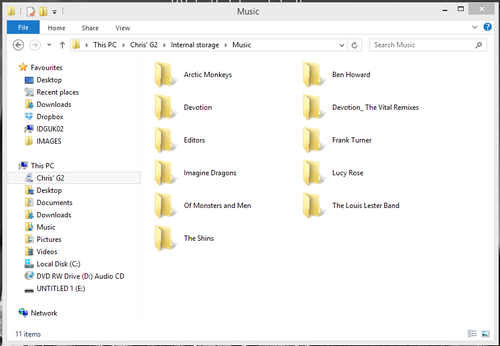
Step 2. Open a new File Explorer window and navigate to your device's music folder. In this case the location is: This PC > Chris' G2 > Internal Storage > Music.


Leave this window open ready to move your music.

Step 3. Open a new File Explorer window (right click on 'This PC' and select 'open in a new window') and find your iTunes music library. By default this is found in: This PC > Music > iTunes > iTunes Media > Music.


Step 4. With the two windows open next to each other on your desktop simply drag and drop the music you want to transfer to your Android device. You can select particular folders or just move everything if you have enough free storage space on your device.


Editor's Recommendation: